As a partner of Guardey, you have access to the MSP portal which allows you to manage your organizations, users whitin your organization, view alerts, set policies and as distributor manage resellers. Here's everything you need to know about accessing and using the MSP portal.
Accessing the MSP portal
The MSP portal can be accessed via https://my.guardey.com/
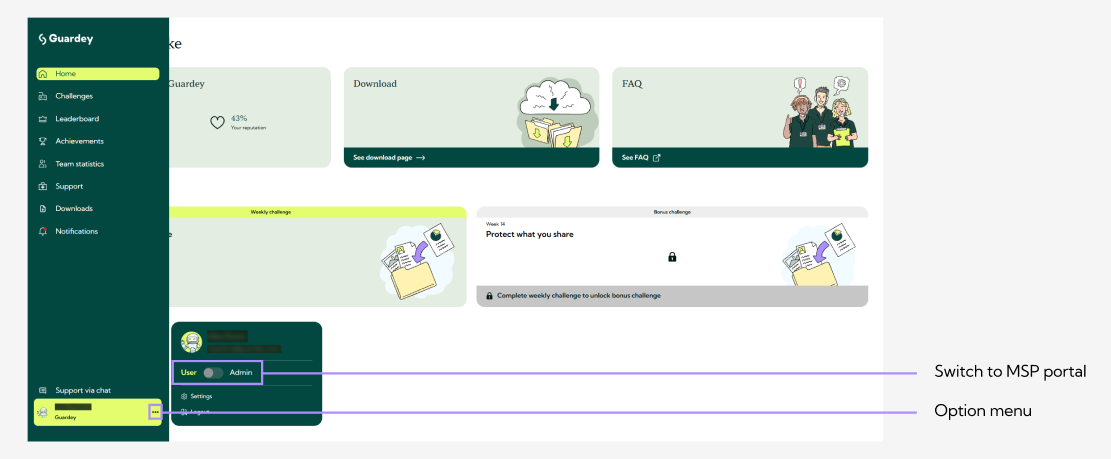
As a partner, you'll have an additional option in the menu within the user portal to switch to the MSP portal.
MSP portal home page
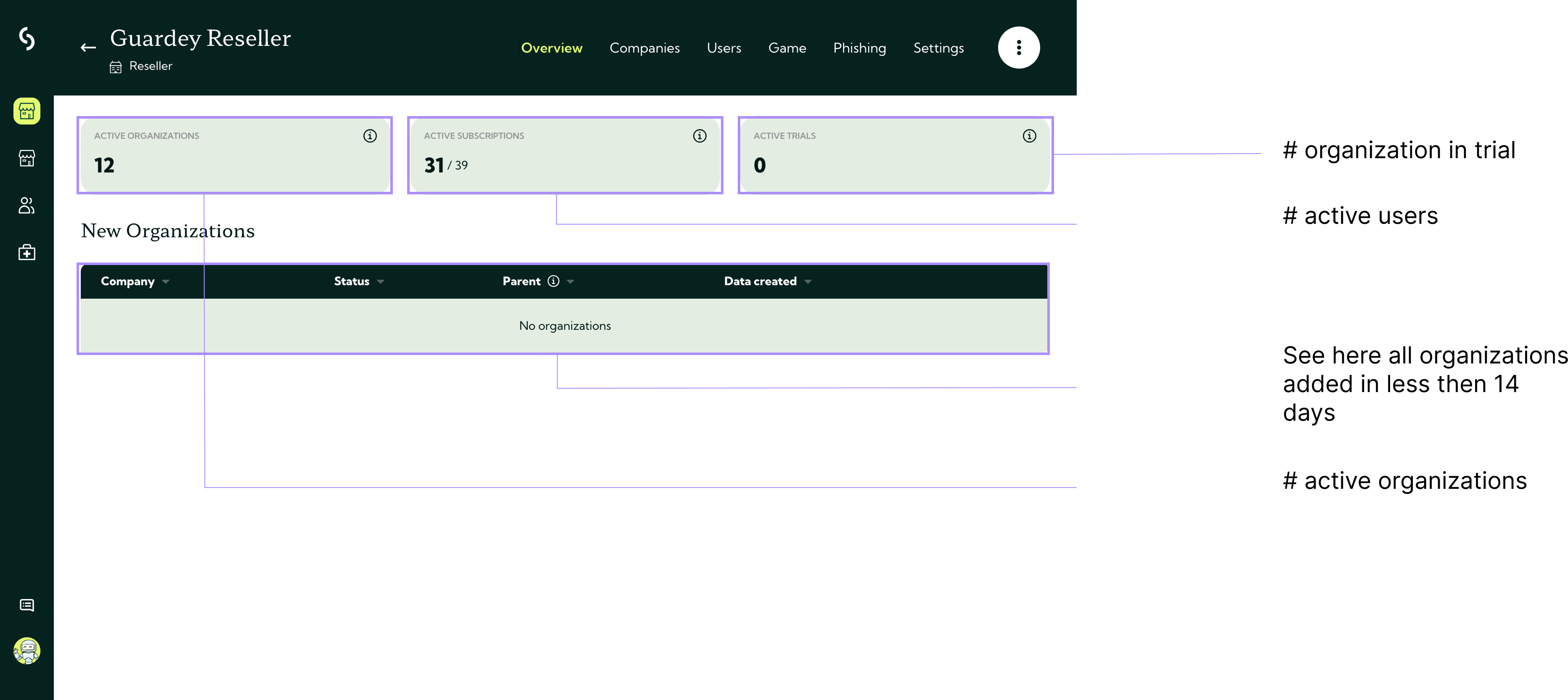
Once you've accessed the MSP portal, the home page provides a quick overview of:
- Your most recently added organizations
- Various KPIs (Key Performance Indicators)
Managing companies
As a partner, you can manage all your client organizations from the companies tab in your portal.
From this screen, you can:
- Search for specific organizations
- Add new organizations
- Manage existing ones
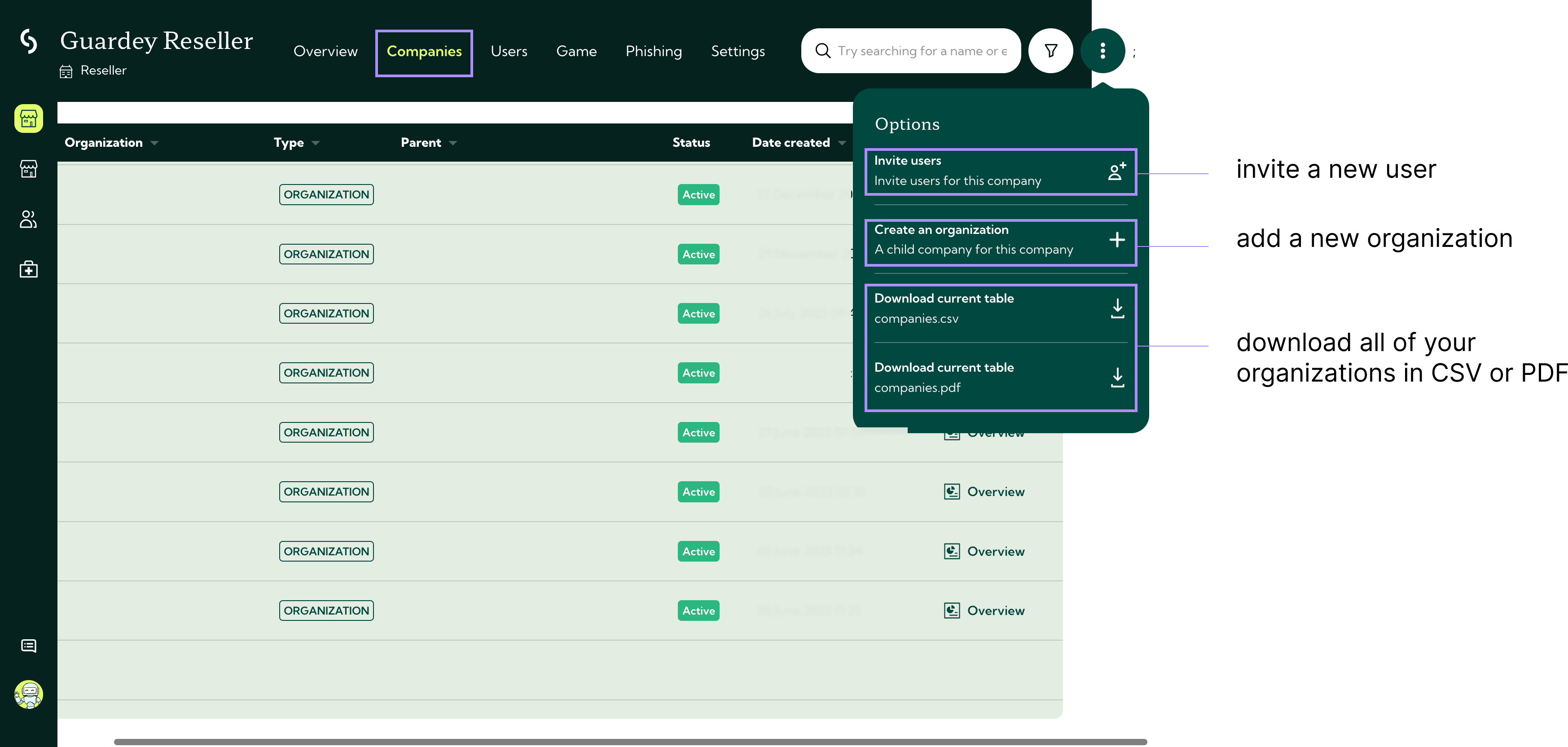
Click the three-dot menu next to any organization to:
- Add new users
- Create a new organization
- Download an overview of all organizations in CSV or PDF format
Use the filter icon to quickly sort organizations by active or inactive status for a clear overview.
Important: Every new organization you add automatically starts with the advanced package, including a 14-day free trial.
Organization Management
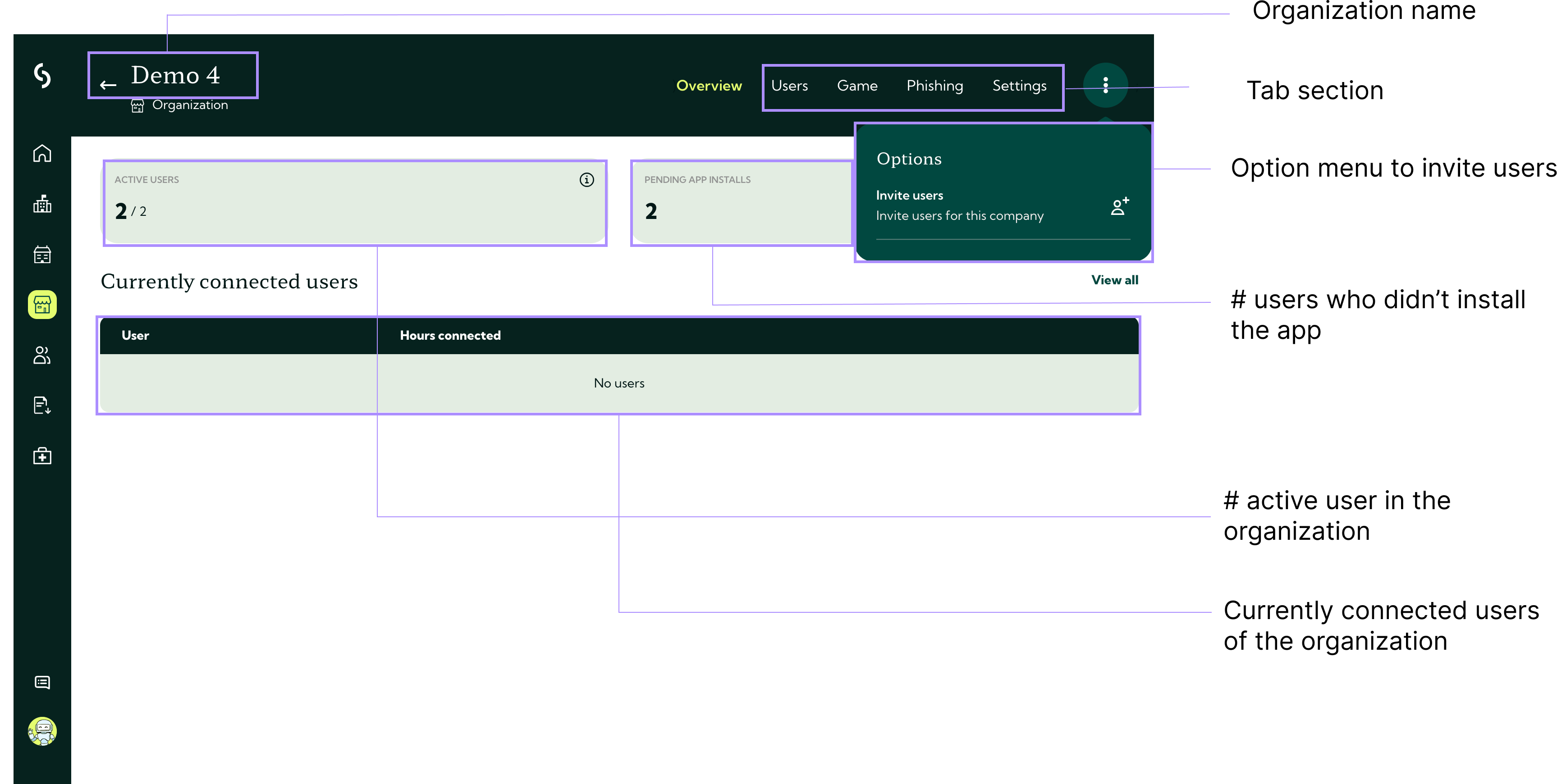
When you view an organization, you have access to several useful tabs and features:
- Overview : Quickly see the organization’s key information.
- Users : View all users, groups, and admins. You can easily add new users using the three-dot menu.
- Game : Check game progress and statistics. From the three-dot menu, you can invite users and download game insights as CSV or PDF. For detailed instructions, you can visit our guide on generating game reports.
- Phishing : Manage and create phishing campaigns. Use the three-dot menu to start a campaign or download the data in CSV or PDF. Check out our step-by-step guide to setting up phishing campaigns.
Deeper view into users
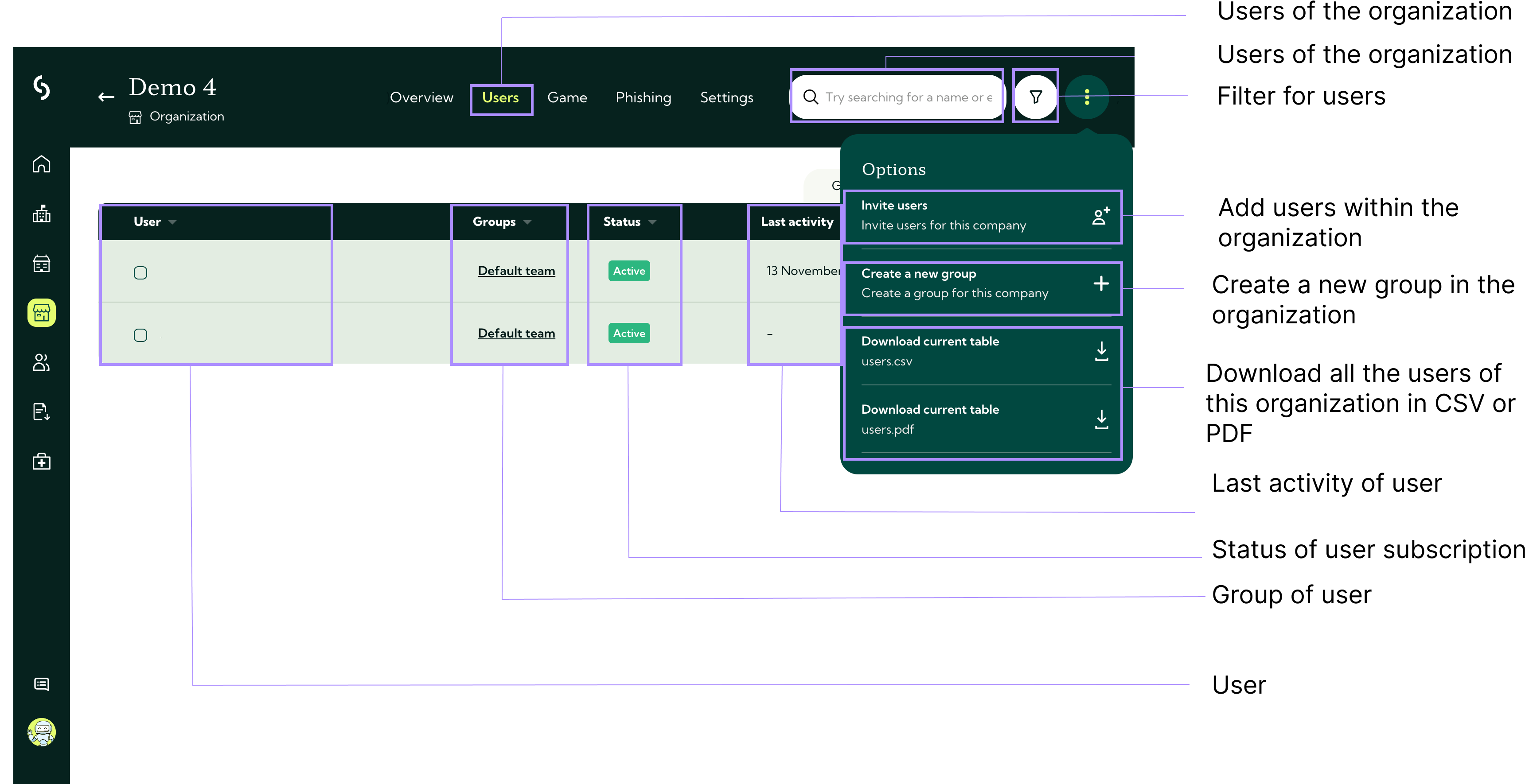
Get detailed insights into the users within your organization. From this screen, you can:
- Add new users
- View all existing users, their status, and activity
- Access a full list of groups and admins
- Download user data as a CSV or PDF file
Use the available filters to quickly refine your view:
- Status – Filter by active or inactive users
- Installed app – See which users have installed the Guardey app
- Date created – Filter by the user’s creation date
- Last active – View users based on their most recent activity
These tools help you manage your users efficiently and stay up to date on engagement across the organization.
User management
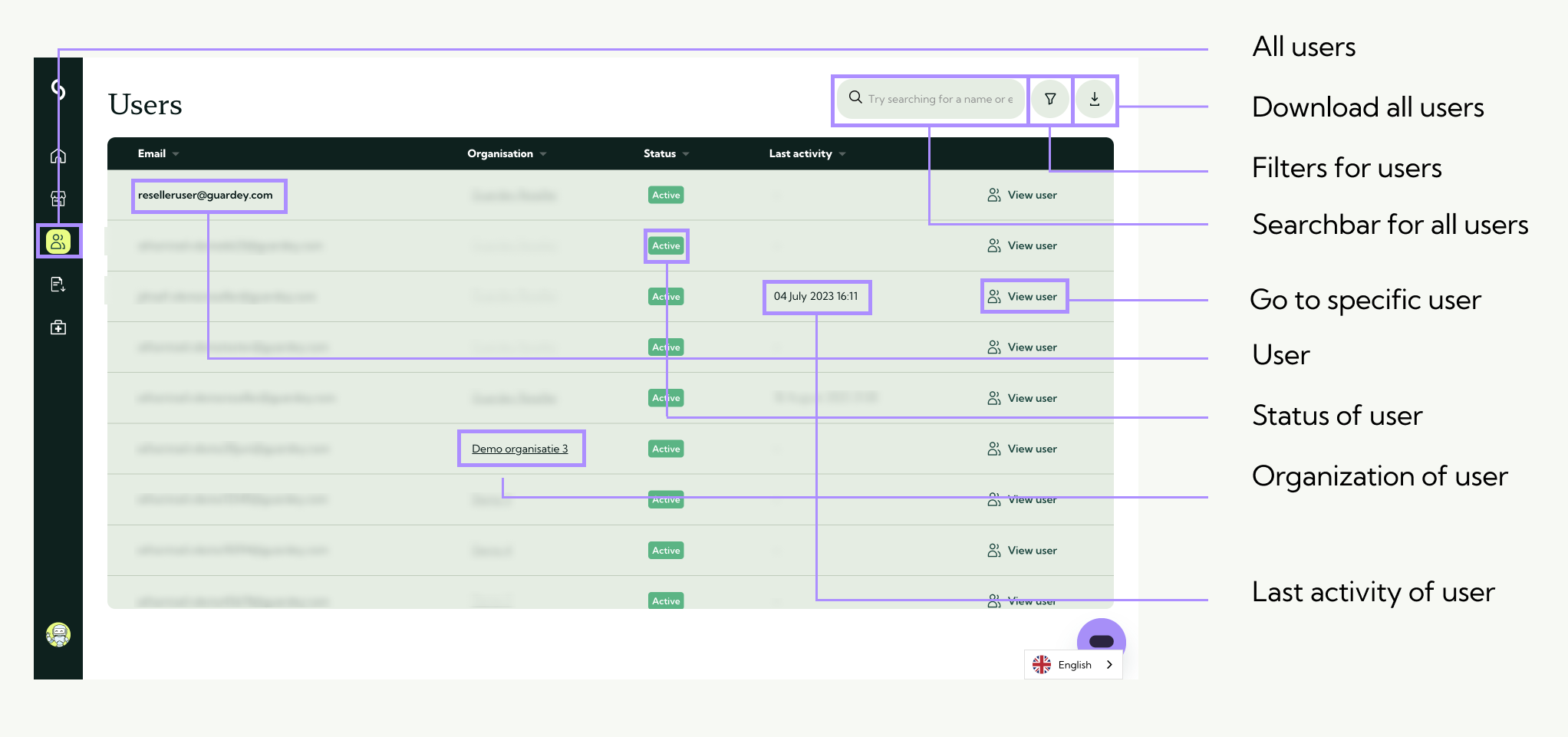
From the menu, you can access the overview of all users to search for a specific user directly, click on view user.
User details
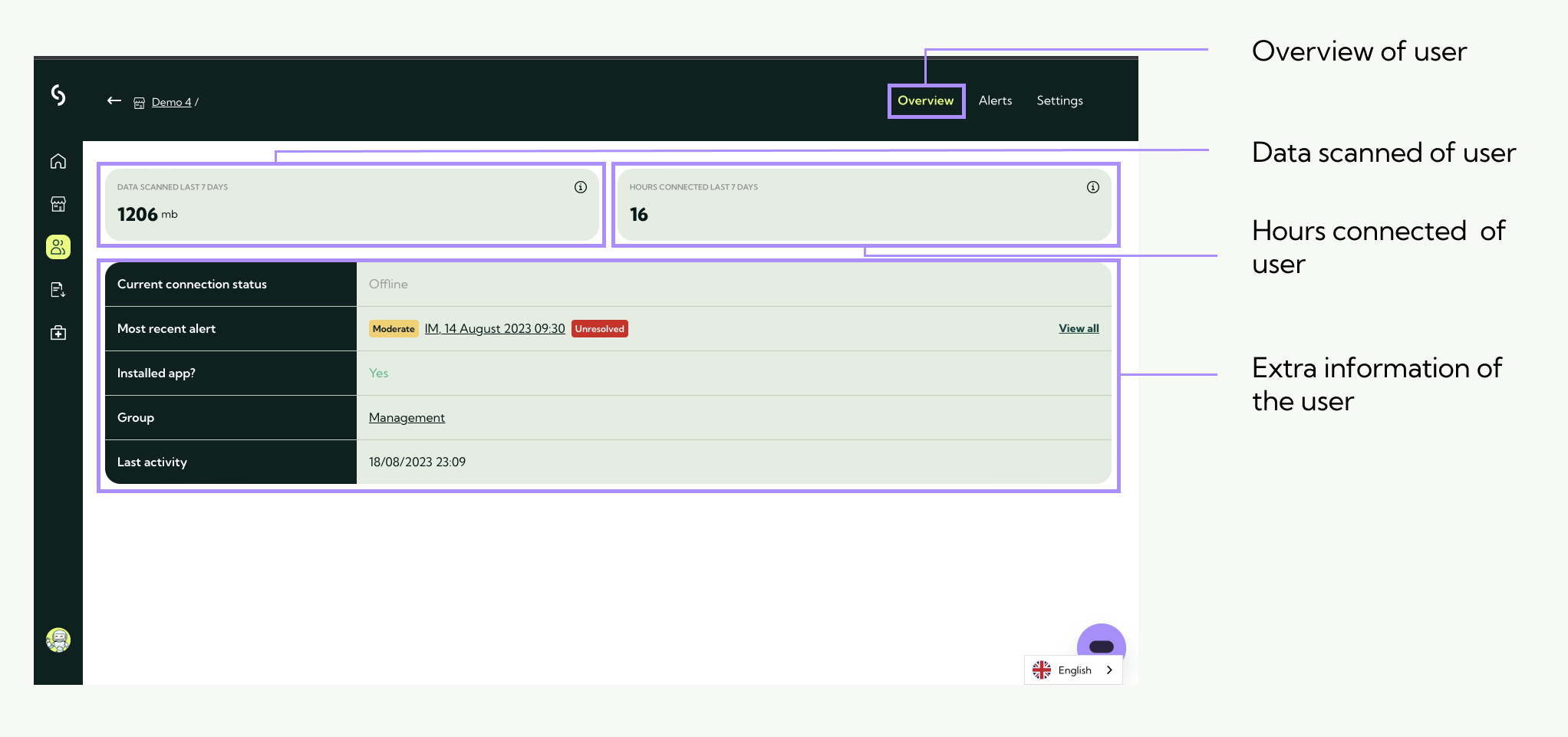
When you click view user to access the user, you will first see an overview of the user.
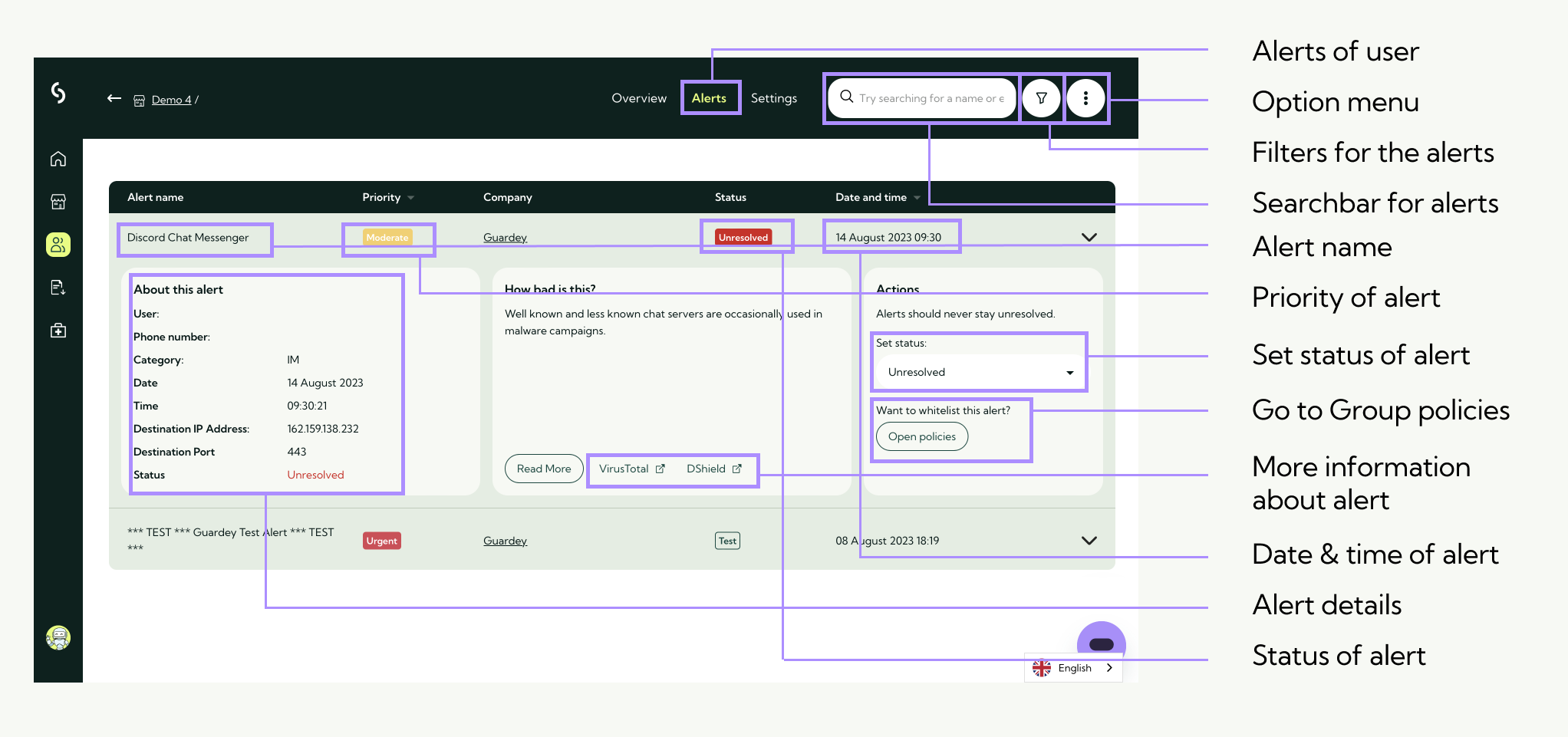
User alerts
View the alerts of the user and adjust their status if needed.
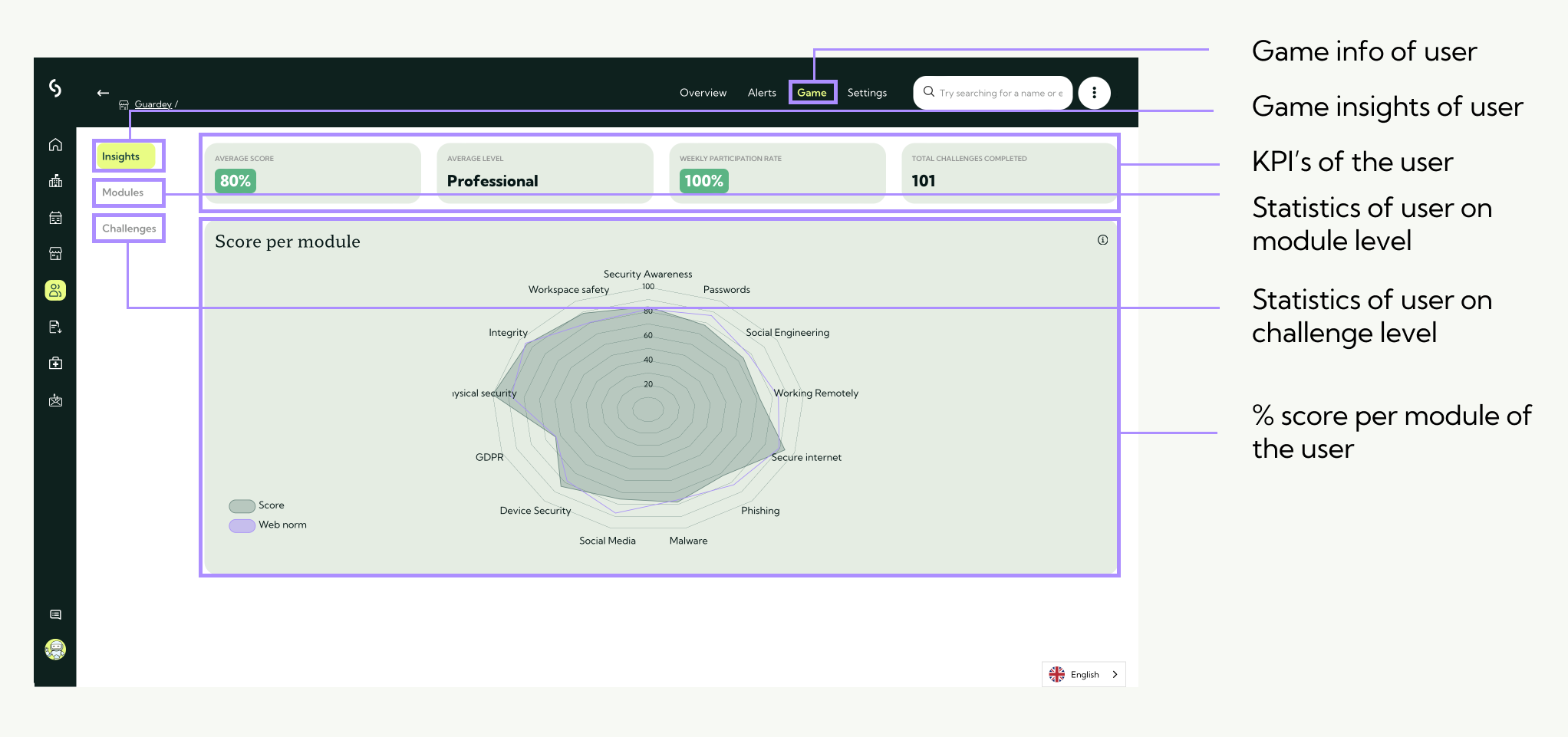
User game
You can access detailed insights into a user's game activity directly from their profile. These include challenge progress, XP earned, loyalty scores, and more.
To better understand what these statistics mean and how to use them effectively, read: Quick Start LMS: How to use the LMS with game statistics
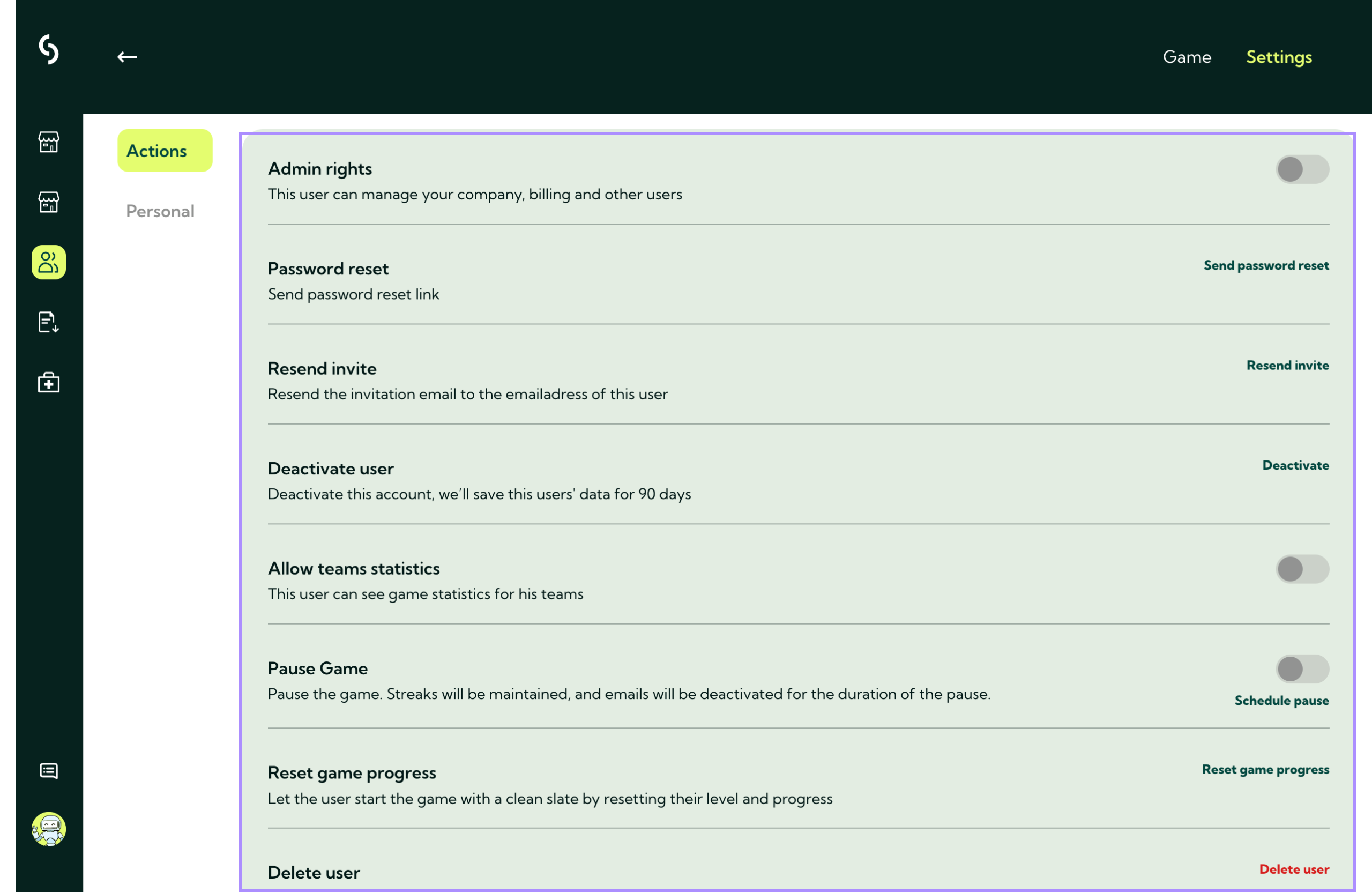
User settings and actions
From the user settings, you can manage individual accounts and take quick actions, including:
- Grant admin rights
- Send a password reset link
- Resend the invitation email to the user's email address
- Deactivate the user
- Give access to team statistics
- Pause the user's game
- Reset the user's game progress
- Delete the user account
- Impersonate the user (log in as the user)
These options help you efficiently manage user access and progress within the platform.
Groups and settings
Every user is part of a group within your organization. Groups help you manage users, settings, and gameplay in a structured way.
From the group overview screen:
- Click the three dots to create a new group
- View and manage existing group settings
- Adjust group-specific policies and preferences
For a full guide, check out: Creating and managing groups within your organization
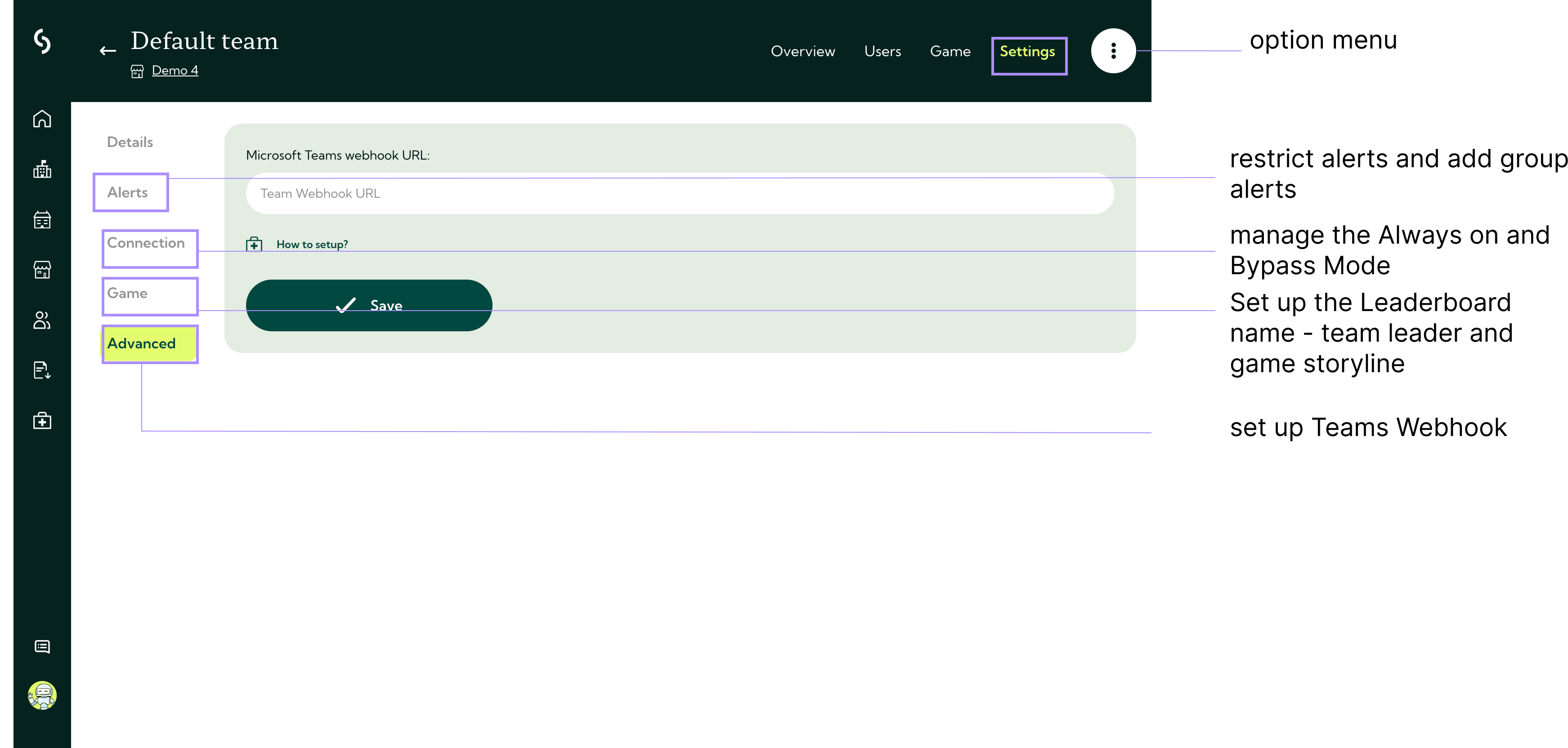
Alerts
- Prevent users from adding personal whitelisted alerts with a simple toggle
- Add whitelisted alerts that apply to the entire group
Connection
Manage network security settings for the group:
- Guardey always on – Ensure the VPN is always active for this group
- Bypasser – Enable or disable the option to temporarily bypass Guardey
Game
Customize how the group appears and plays in the Guardey environment:
- Leaderboard name (optional): Choose a custom display name for the leaderboard
- Leader: Assign a team leader or group captain
- Storyline: Select a specific storyline for the group’s game experience (defaults to the organization-wide storyline)
Advanced
- Microsoft Teams integration: Add a webhook URL to send notifications and updates directly to a Microsoft Teams channel
These tools give you full control over each group's behavior, visibility, and learning experience in Guardey.