Inviting a colleague to Guardey is only possible if you have admin rights. There are several ways to invite new users:
Manually: Add colleagues one by one.
In bulk: Invite multiple colleagues at the same time.
Add users via Azure: Set up integration with Microsoft Entra ID (Azure AD) to sync your user base automatically.
Choose the method that best fits your organization’s needs.
Manually invite a user to your organization
Step 1: Go to the admin portal.
Step 2: Click the action menu (three dots) in the top right corner. Select invite user.
Step 3: A pop-up will appear. Enter the email address of the user you want to invite and press enter. Choose the correct team and then click send invitation.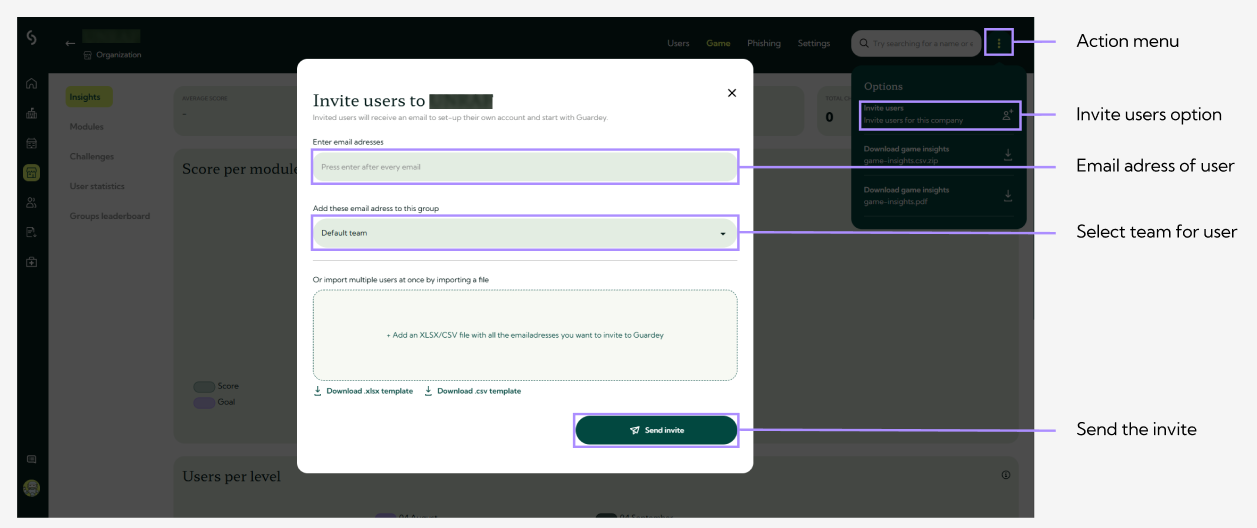
Advantages:
- You can invite each user individually, no technical setup required.
- Commonly used by smaller teams or when there is no central IT infrastructure.
Disadvantages:
- Users need to create and manage their own password.
- Forgotten or lost passwords require manual resets.
- Less secure: users manage their own passwords, without central MFA enforcement.
Bulk invite
Step 1: Go to the admin portal.
Step 2: Click the three dots in the top right corner.
Step 3: Click invite user. A pop-up will appear. In this pop-up, you’ll see an option to download the template.
Step 4: Click the download template link or button in the pop-up. The file (usually a .CSV) will be downloaded to your computer.
Step 5: Open the file, fill in the required user information, and save it.
Step 6: Upload the completed .CSV file in the same pop-up to add all users at once.
Advantages:
- Efficient when inviting large numbers of users.
- Saves time during the onboarding process.
Disadvantages:
- Users need to create and manage their own password.
- Forgotten or lost passwords require manual resets.
- Less secure: users manage their own passwords, without central MFA enforcement. - Manual updates needed when team changes occur.
- No integration with existing IT environments or automation.
Add users via Azure A full step-by-step guide can be found in our help center article: User Provisioning setup with Microsoft Entra ID (Azure AD)
Advantages:
- Full integration with the Azure environment; ideal for IT teams already using Microsoft.
- Users are automatically synced (provisioned), reducing the need for manual user management.
- Access only via organization account; extra security through Microsoft MFA.
- Increased consistency: users are automatically added or removed based on changes in Azure AD.
- Extra security through Microsoft or Google MFA.
Disadvantages:
- Requires technical setup from your IT team.
- Users might be confused because they don’t set a password—they must log in via Sign in with Microsoft.
- Resetting passwords can be confusing, as these users don’t have a separate Guardey password.