With custom content, you can add your own security material to Guardey. This allows you to integrate company or team-specific security guidelines into the Guardey storyline and customize existing content to perfectly align with your organization's security vision.
What can you do with custom content?
Examples of possibilities:
- Train the finance team in checking incoming invoices
- Instruct teachers to log out from computers and digital boards when leaving the classroom
- Inform staff about proper handling of customer and patient data
- Share organization-specific password guidelines
Note: You must be an administrator within your organization to add custom content.
Accessing custom content
Navigation:
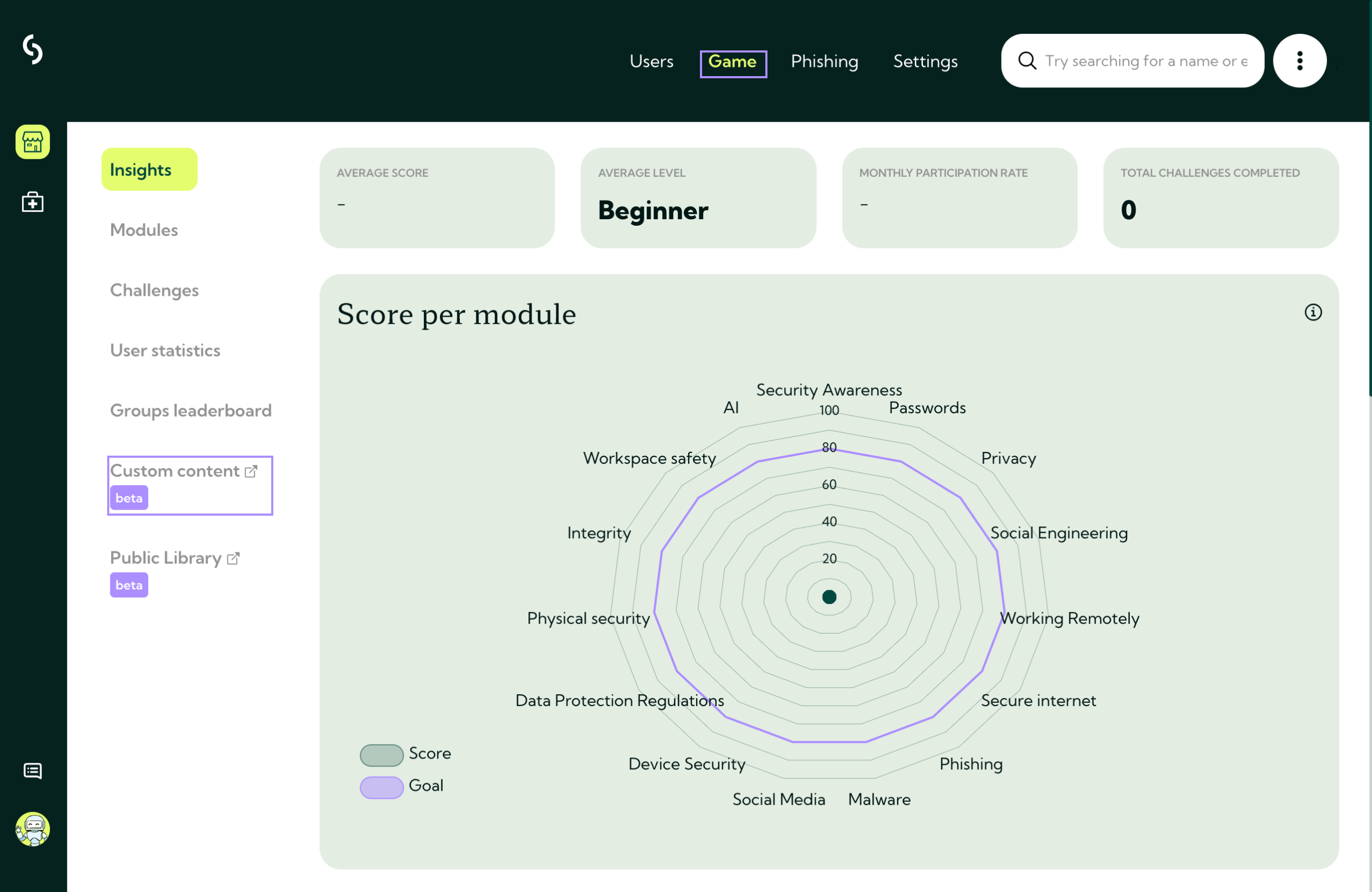
Step 1: Go to the admin portal of Guardey
Step 2: Click on game
Step 3: Select custom content in the left menu
Step 4: The custom content module opens in a new window
Content structure
The custom content module consists of two main components:
Modules
Each challenge belongs to a module. Modules function as main categories and are important for reporting. Users do not see these modules directly.
Default modules:
Guardey offers 16 predefined modules that you can use, but cannot modify:
- Test module
- Security awareness
- Passwords
- Privacy
- Social Engineering
- Working from home
- Safe internet
- Phishing
- Malware
- Social media
- Device security
- Secure email
- GDPR
- Physical security
- Integrity
- Workplace safety
Adding your own modules:
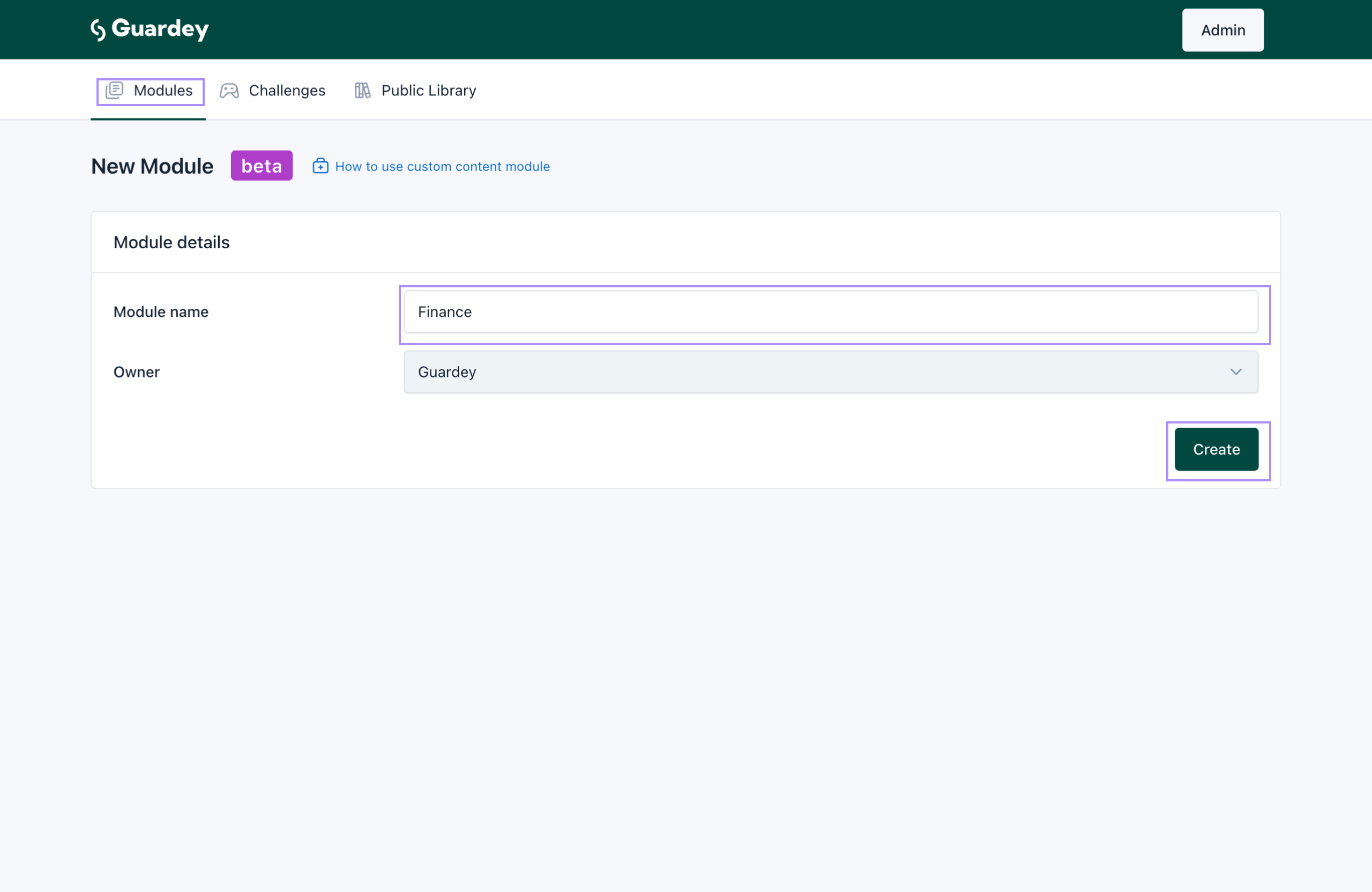
Step 1: Select the modules tab
Step 2: Click on new module (top right)
Step 3: Enter the module name (for example: "Finance")
Step 4: Click on create
Step 5: Your new module appears in the overview
Challenges
Challenges are weekly assignments that allow users to earn points. There are two types:
Regular challenges: Provide explanations about topics and contain game elements for points. With correct answers you earn points and reputation; with wrong answers you lose them.
Bonus challenges: Enable users to delve deeper into topics and earn extra points. Usually you cannot lose points or reputation here.
Managing challenges
On the challenges page you can see all available challenges within Guardey. You have two options:
- Create completely new content - Build your own challenges from scratch
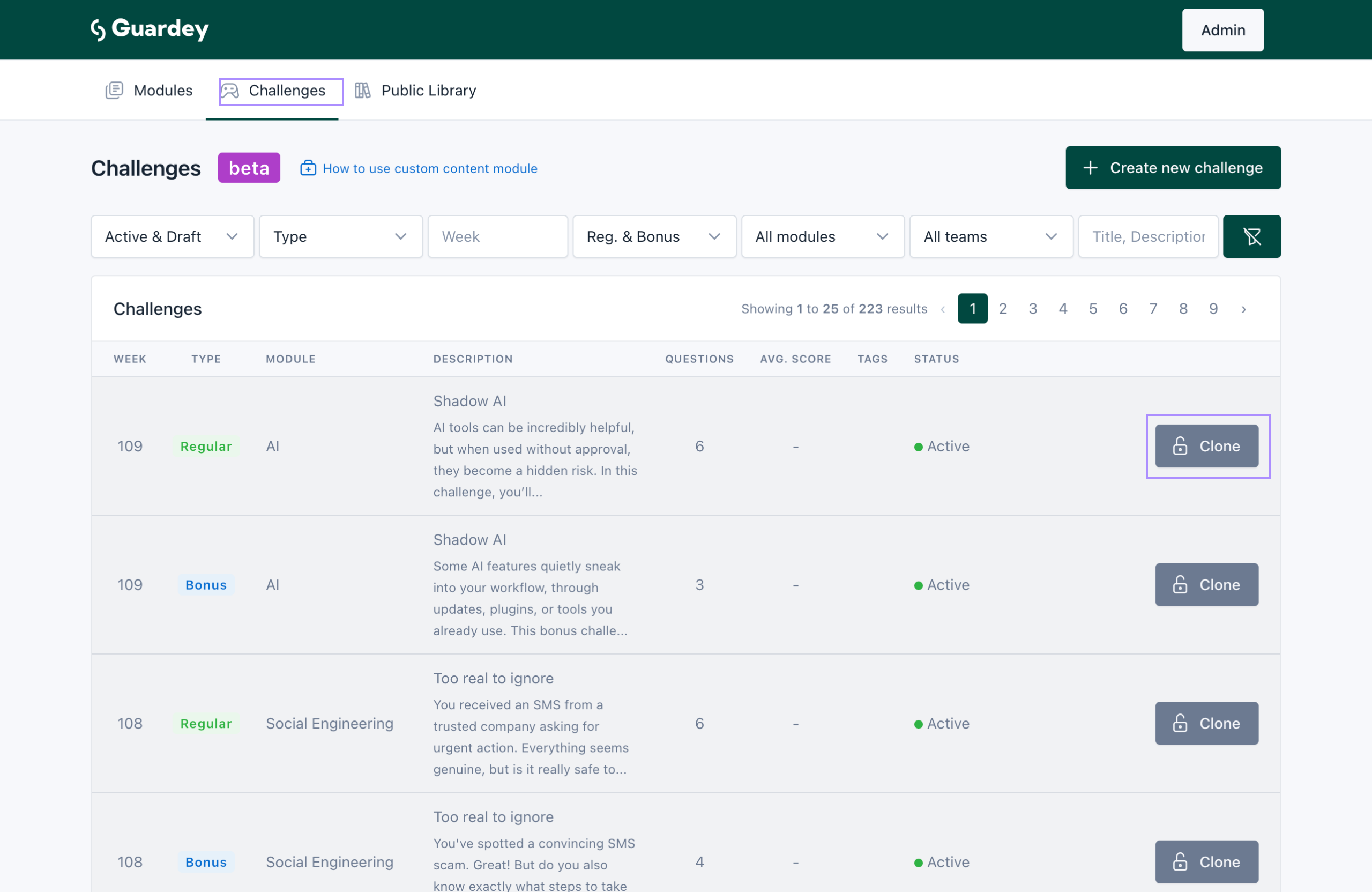
Modify existing content - Modify Guardey content to your preferences
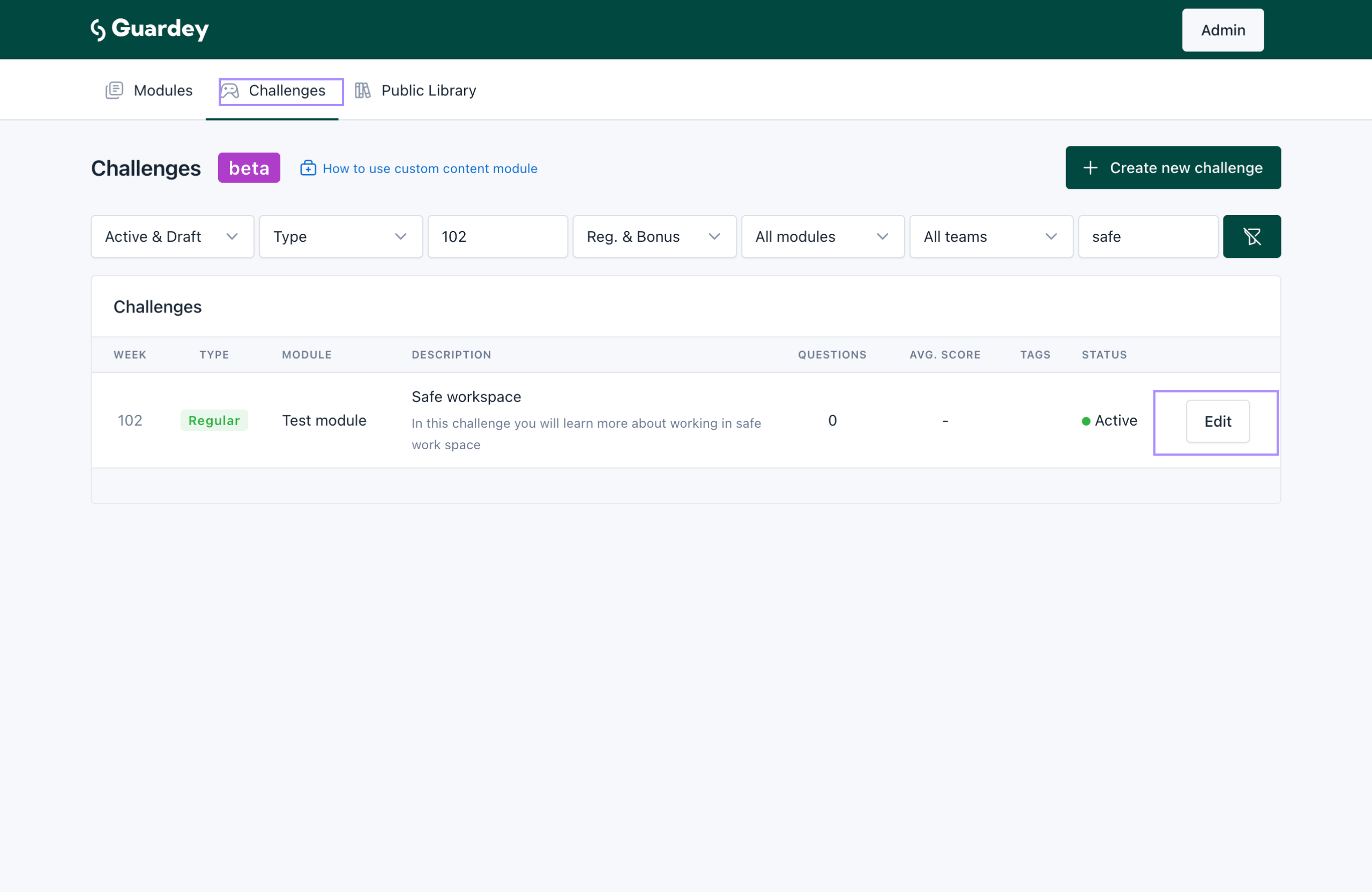
Adding new content
Click on + create new challenge to create a completely new challenge.
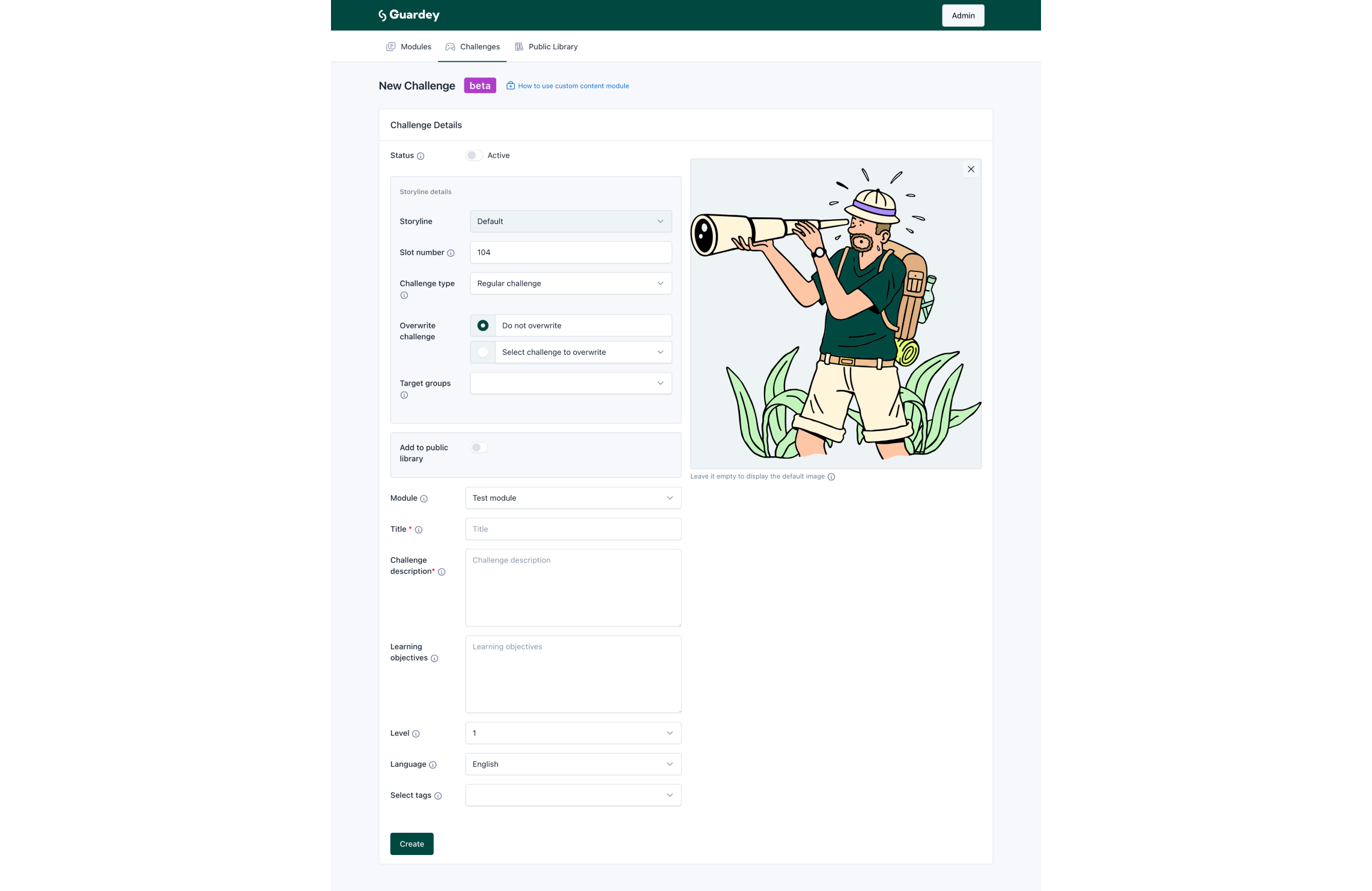
Challenge settings:
Basic information:
- Status - Activate to make the challenge live, or leave off for a draft
- Challenge type - Choose between regular or bonus challenge
- Slot position - Determine the position in the storyline
- Module - Select the corresponding module
- Title - Title of the challenge (required, visible to users)
- Challenge description - Short description (required, visible to users)
Advanced settings:
- Level - Difficulty level for order determination
- Learning objectives - What users learn after completion
- Language - Select the language (multilingual coming soon)
- Public library - Determine whether other organizations can see this challenge
- Labels - Tags for specific groups or sectors
- Target audience - Leave empty for entire organization or select specific groups
- Image - Upload your own image or use default image
Tip: Focus on one topic per challenge for optimal learning results.
Adding questions:
After saving the challenge you can add questions via "+ Add question".
Question options:
- Title - Main text of the question (required)
- Description - Extended description under the title
- Image - Visual support for the question
- Link to video - Add YouTube video
- Image placeholder - Text instead of image
- Explanation - Feedback after answering (always the same, regardless of answer)
Question types:
This or that - Two choice options
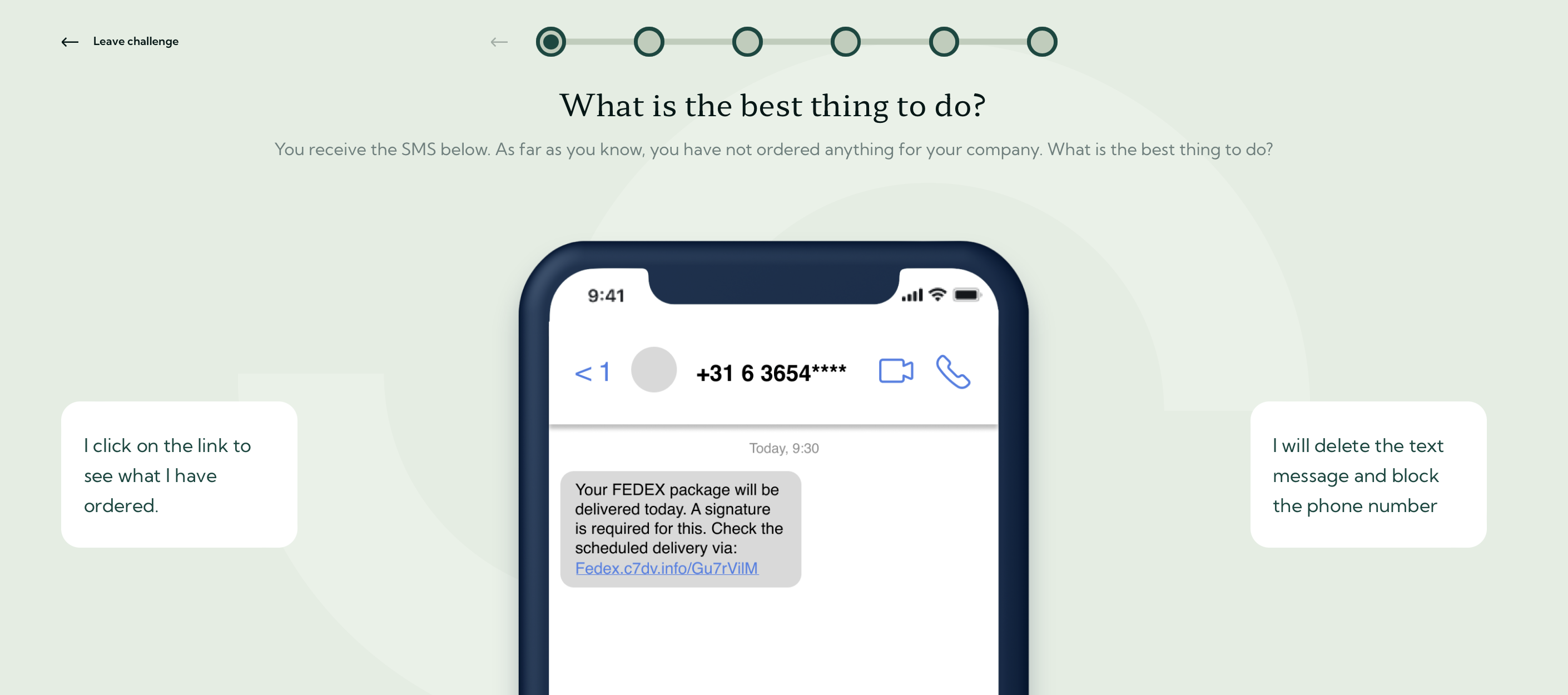
Single choice - Multiple choice with one correct answer
Multiple choices - Multiple choice with multiple correct answers
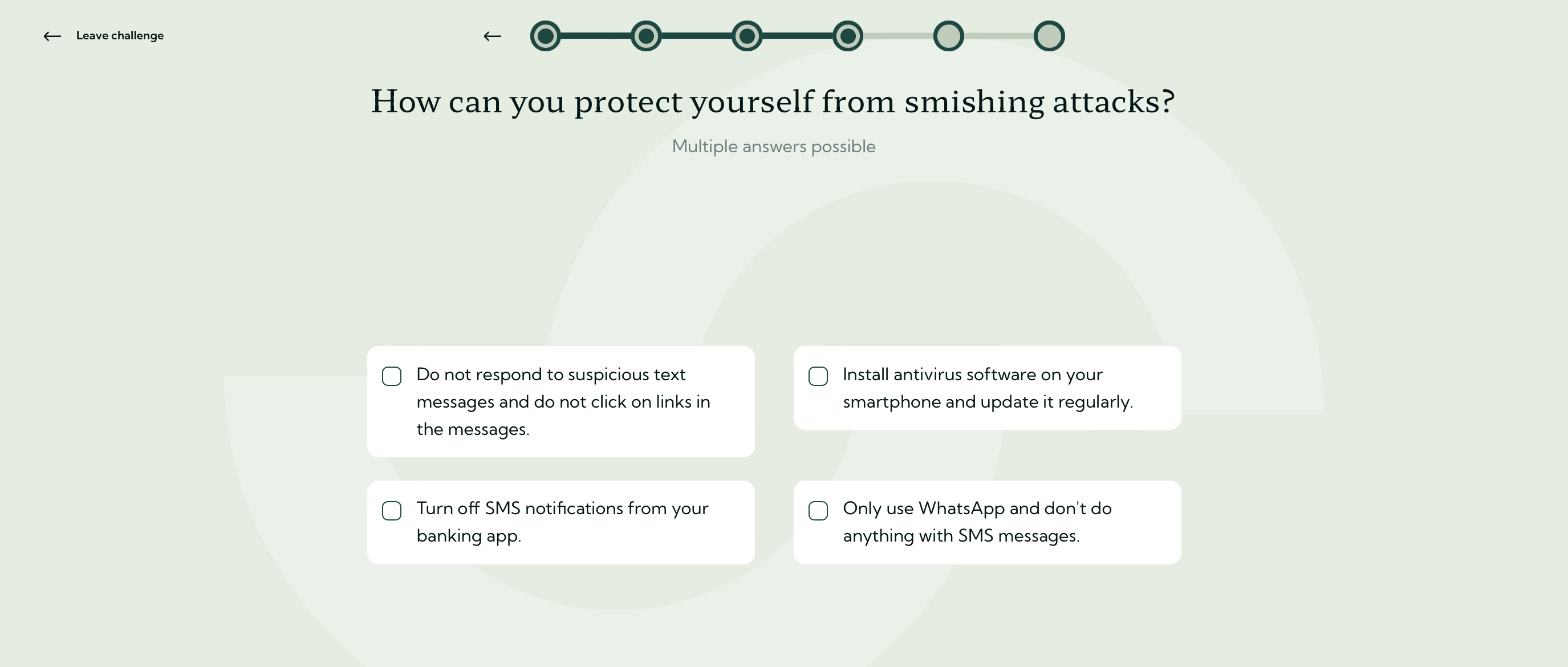
Connect the dots - Connect items from left and right column
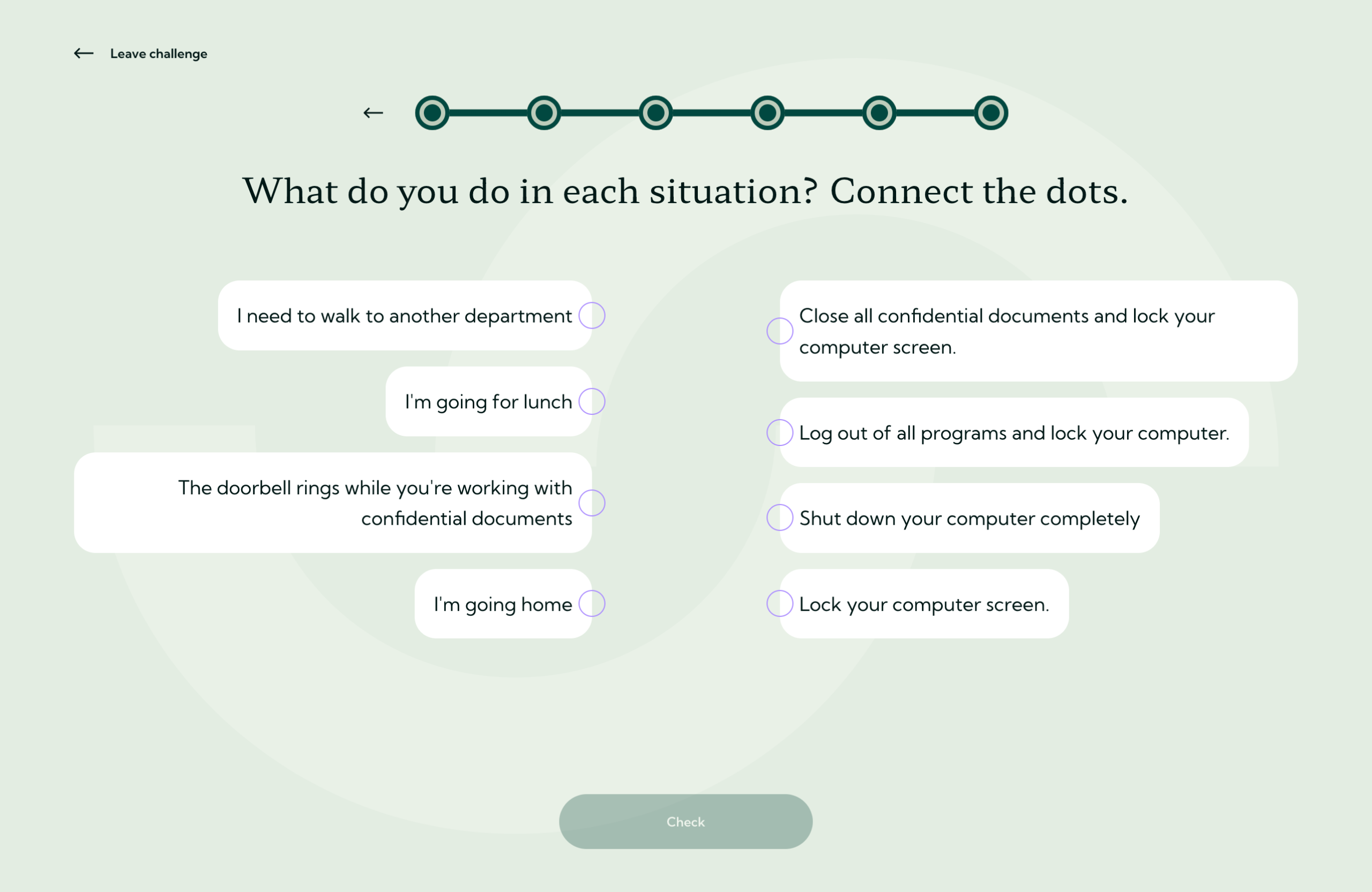
Choose image - Choose between two images
No choice - Only informative text (set all scores to 0)
Scoring system:
- Score correct - Points for correct answer
- Score wrong - Points lost for wrong answer
- Reputation score correct - Reputation boost for correct answer
- Reputation score wrong - Reputation loss for wrong answer
Extra features:
- Sort number - Determine question order
- Conditions - Show questions based on previous answers
Important: Always click "Update question" after changes.
Recommendation: Limit challenges to a maximum of 6 questions so users can complete them within 5 minutes.
Modifying existing challenges
You can clone Guardey challenges and customize them as desired.
Example scenario:
Regular challenge 3 states that passwords should be changed annually, but your policy requires semi-annual changes.
Steps:
Step 1: Search for regular challenge 3
Step 2: Click on clone
Step 3: Navigate to the relevant question (number 4)
Step 4: Adjust the answer and associated text
Step 5: Save the challenge
From that moment on, all users in your organization will see the customized version.
Note: Cloned challenges are fully under your own management. Future updates from Guardey will not be automatically applied to cloned content.