Installing the Guardey Outlook add-in
The Guardey Outlook add-in makes it easy to report suspicious emails directly from Outlook. This helps strengthen security awareness and incident response within your organization.
Compatibility
The add-in is supported on:
New Outlook for Windows
Web browsers: Google Chrome, Firefox, and Microsoft Edge
For Mac users, we recommend using one of the supported browsers.
Note:
The add-in is not compatible with the Outlook desktop app on macOS or the Safari browser.
Shared mailboxes are currently not supported.
Benefits
When a user reports an email:
- The report is forwarded to the configured reporting email address within your organization
- Phishing simulations are not forwarded to the reporting email address to avoid unnecessary workload
- Results will be processed within Guardey reporting
Note: Registration of simulation reporting in the overview will be added later.
Setting the reporting email address
Before users can report emails, a reporting email address must be configured.
Step 1: Log in to the Guardey admin portal
Step 2: Go to Settings → Phishing
Step 3: Enter the desired email address under Reporting email address
Step 4: Save the changes
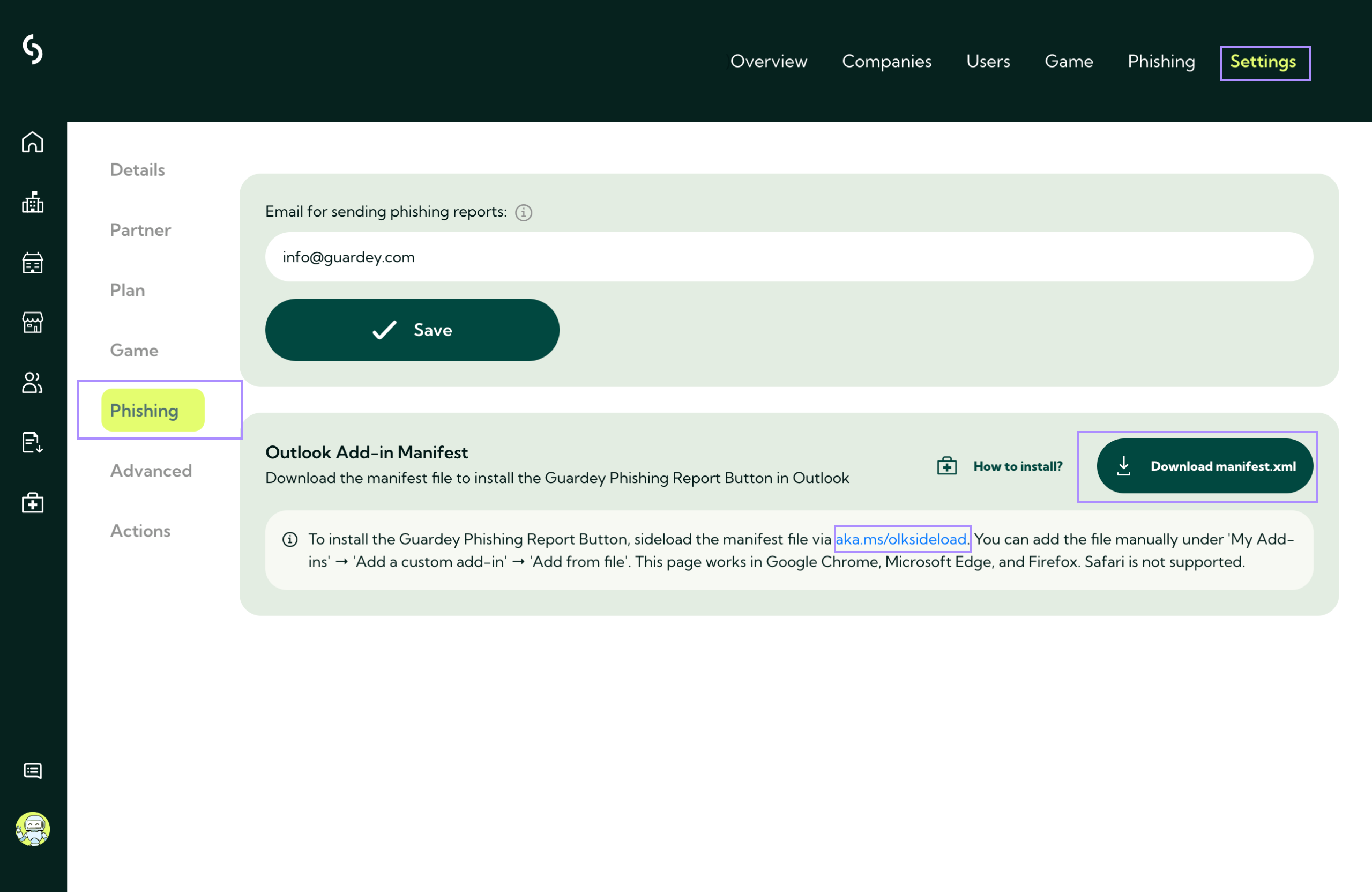
Downloading the manifest file
Step 1: Log in to the admin portal
Step 2: Go to Settings → Phishing
Step 3: Scroll down to Outlook Add-in Manifest
Step 4: Click Download
Step 5: Save the manifest.xml file
Installing the add-in in Outlook
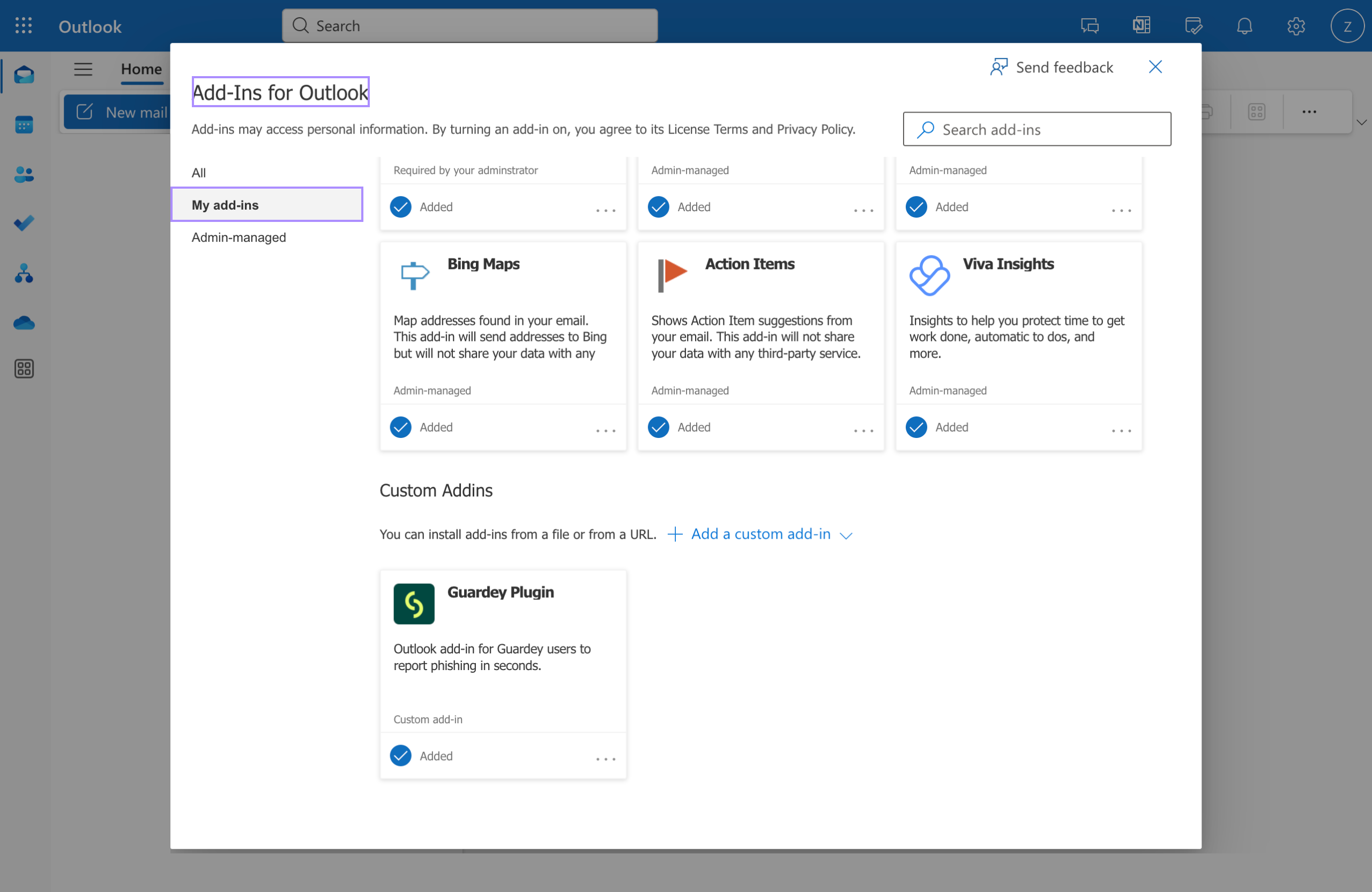
Step 1: Go to http://aka.ms/olksideload
Step 2: Open the My add-ins tab
Step 3: Scroll down to Custom add-ins
Step 4: Select + Add a custom add-in → Add from file
Step 5: Select the manifest.xml file and click Install
The add-in is now installed and available in your Outlook interface.
Organization-wide deployment (Microsoft Admin Center)
Step 1: Go to https://admin.microsoft.com
Step 2: Navigate to Settings → Integrated apps
Step 3: Click Upload custom apps
Step 4: Upload the manifest.xml file
Step 5: Select the users or groups
Step 6: Click Deploy
Note: It may take 6–24 hours before the add-in becomes visible to all users.
Using the Guardey add-in
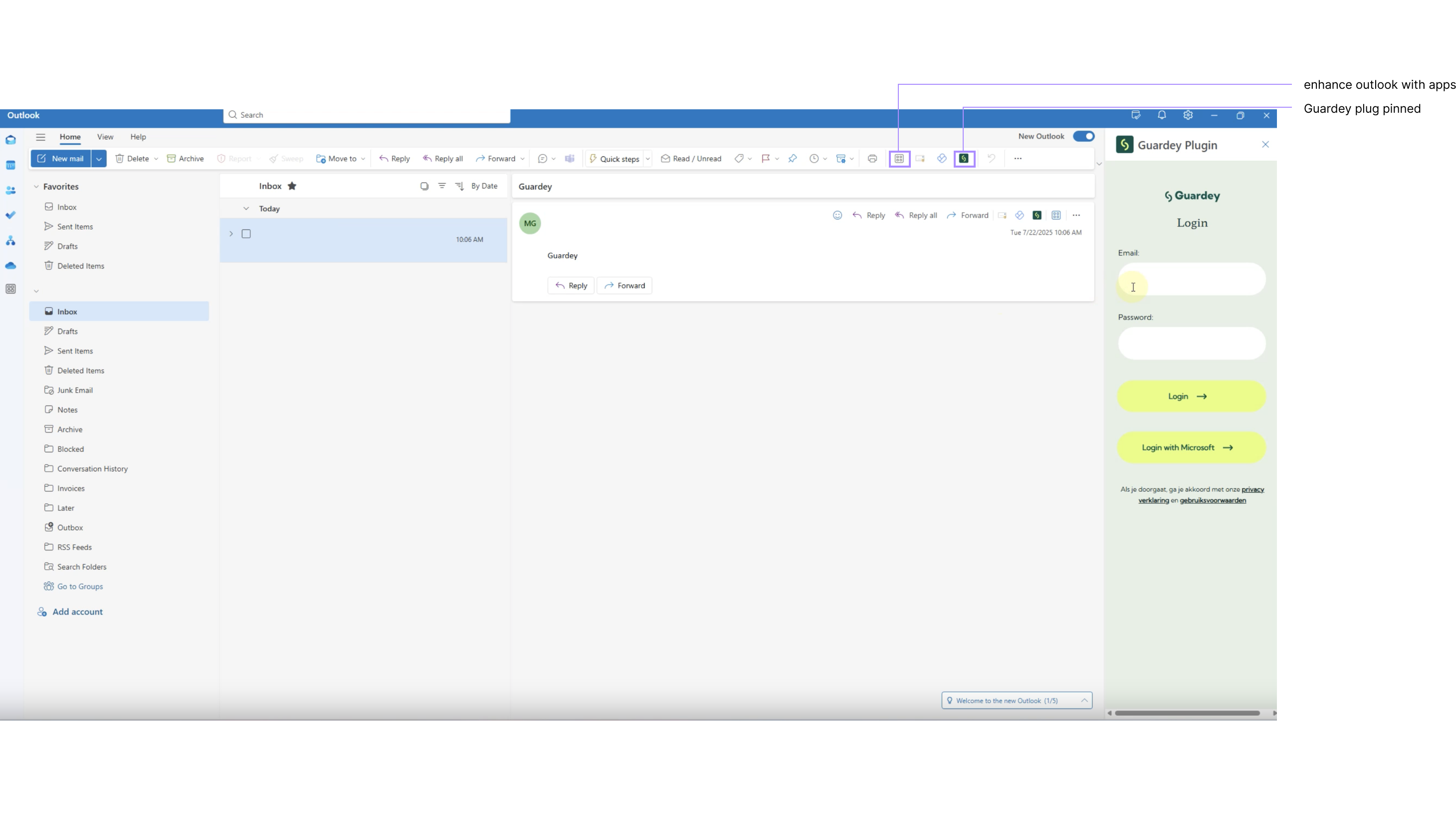
Step 1: Open Outlook and select an email
Step 2: Click the Apps icon in the toolbar
Step 3: Open the Guardey Phishing Report add-in
Step 4: Sign in if prompted and pin the add-in for quicker access
Users can now report suspicious emails directly from Outlook..
Ready to use!
With the Guardey Outlook add-in, secure email behavior becomes even easier for your colleagues, and your organization stays better protected.