Understanding the different roles within Guardey is essential for proper organization management and security. Each role comes with specific permissions and access levels designed to balance functionality with data protection.
This guide helps you understand the available roles, what they can do, and how they function within different organizational setups. Assigning the right roles is crucial for running an effective security awareness program.
Organizational roles in Guardey
Guardey offers three primary roles with different access levels that align with responsibilities across your organization.
Admin
The admin role is intended for individuals who need full visibility and control over the entire Guardey environment, users, teams, content, settings, and reporting.
What can an admin do?
- User management: Add or remove users, assign roles, manage teams
- Comprehensive reporting tools: Access activity reports, engagement metrics, and completion rates organization-wide
- Organization dashboards: View high-level and detailed analytics for the whole organization
- Team statistics: Track performance, challenge completion, and engagement across all teams
- Gamification settings: Configure challenges, competitions, rewards, and game settings
- Full access to all organization data: View all training and performance data
- Custom content management: Create new training modules or adjust existing content
- Phishing simulations: Set up, customize and schedule phishing campaigns using the available templates
How to make someone an admin
To assign admin rights to a user:
Step 1: Go to users
Step 2: Click view user
Step 3: Open the settings tab
Step 4: Enable the admin rights switch
The user will immediately gain full administrative access across the organization.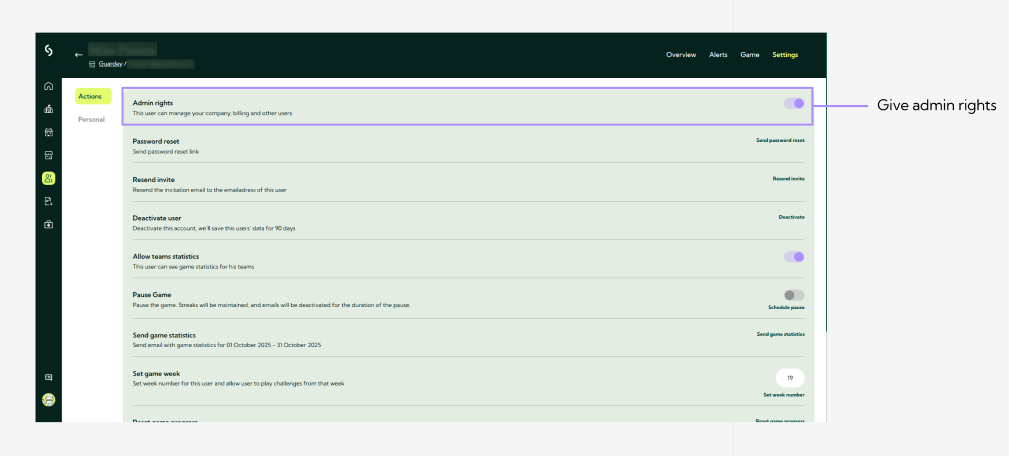
When to use this role
Assign the admin role to IT managers, security officers, CISOs, or training coordinators who require complete control and oversight of the security awareness program.
Group leader
The group leader role offers targeted administrative capabilities for department heads and team managers who need insights into their team’s performance, without gaining access to the entire organization.
What can a group leader do?
- Team statistics dashboard: View detailed analytics for their assigned team, including:
- Individual and team completion rates
- Challenge performance
- Engagement and participation levels
- Training progress
- Gamification achievements and scores
- Team progress monitoring: Real-time insights into how team members progress through training
- Performance insights: Identify training needs and highlight successes within the team
- Focused reporting: Access reports specifically related to the team
How to make someone a group leader
To assign a group leader to a team:
Step 1: Go to users
Step 2: Open groups
Step 3: Select manage group
Step 4: Go to the settings tab
Step 5: Open game
Step 6: Set the leader for the group
This user will now appear as the official group leader for gamification and team statistics.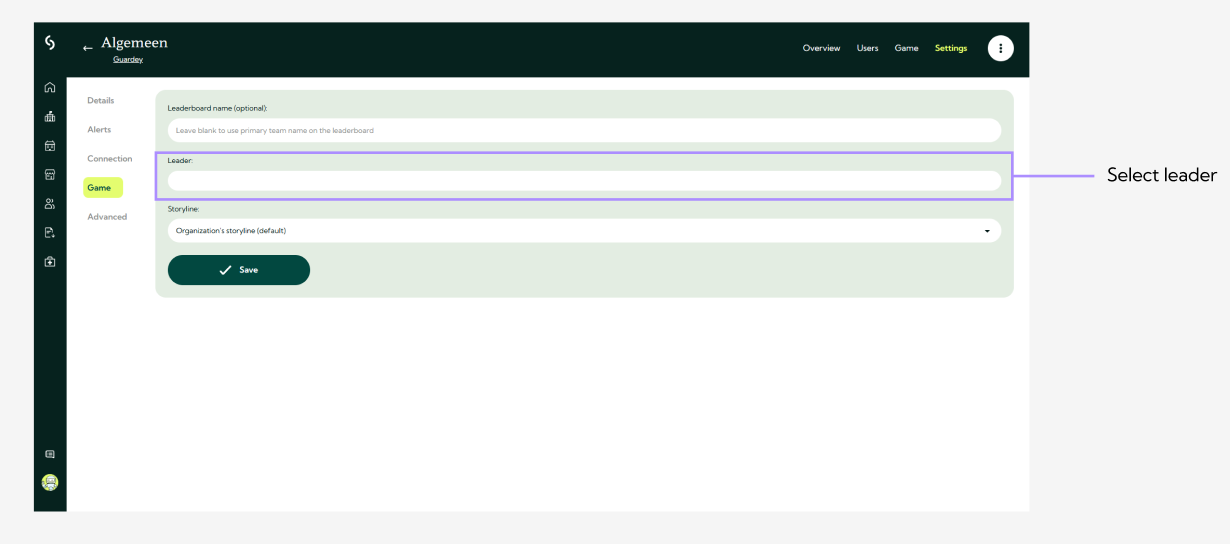
When to use this role
Assign the group leader role to team leads, supervisors, or department managers who need insight into the performance of their own team but do not require access to the broader organization.
User
The user role is the default role for employees who participate in security awareness training.
What can a user do?
- Training challenges: Access all assigned training modules and content
- Gamification features: Participate in badges, challenges, competitions and leaderboards
- Personal progress tracking: Review their own training history, performance, and achievements
- Interactive learning: Engage with various training formats, simulations, and learning paths
When to use this role
Assign this role to all employees who need to complete security awareness training and take part in gamification activities.
Allowing multiple users to view the same team statistics
In addition to assigning an official group leader, Guardey allows you to give multiple users access to the same team statistics. This is useful for HR, additional managers, or supervisors who require insight into team performance. This can be done for as many users as needed and does not affect gamification roles or leaderboards.
How to set this up
Step 1: Go to users
Step 2: Select view user
Step 3: Enable allow team statistics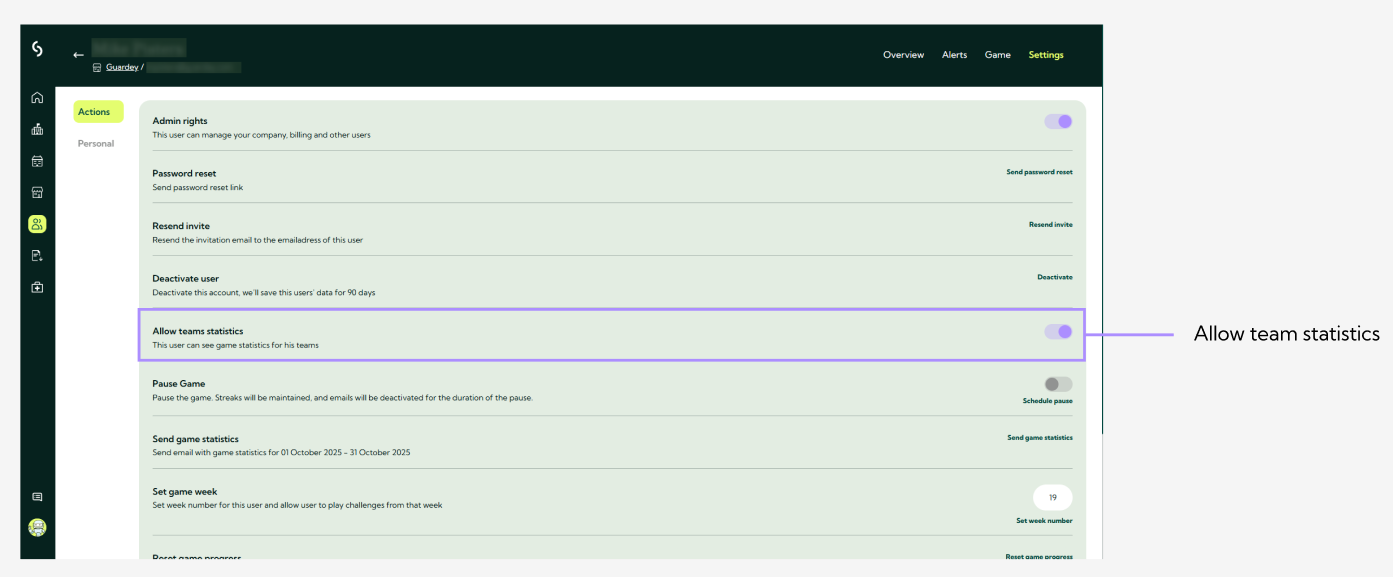
Best practices for role management
Assign roles based on responsibility
- Admins: IT managers, CISOs, security officers
- Group leaders: Department heads, team managers, supervisors
- Users: All other employees
Security considerations
- Only grant admin rights to those who genuinely need them
- Use group leaders to reduce administrative workload for admins
- Regularly review role assignments to ensure they remain accurate
Supporting organizational structure
- Align Guardey roles with your internal hierarchy
- Assign a clear group leader per team
- Provide additional users (like HR or management) access to team stats only when needed, instead of granting full admin rights